Add a new product
Create a product with its name, price, images, description and category, then publish it to your store.
Updated October 9, 2026
- Go to Content Manager → Generic.Products, check the language box, and click Create new entry.
- Fill in projectId with your website's code. See The two required fields.
- Fill in name and slug (the web address, lowercase with hyphens, for example
oslo-oak-chair). - Set the price and stock. See Update prices, sales and stock.
- Write the description (short text for product lists) and contentMD (full details).
- Choose the heroImage (main photo) and gallery (extra photos). See Add images.
- Pick categories so the product shows in the right group.
- Click Publish.
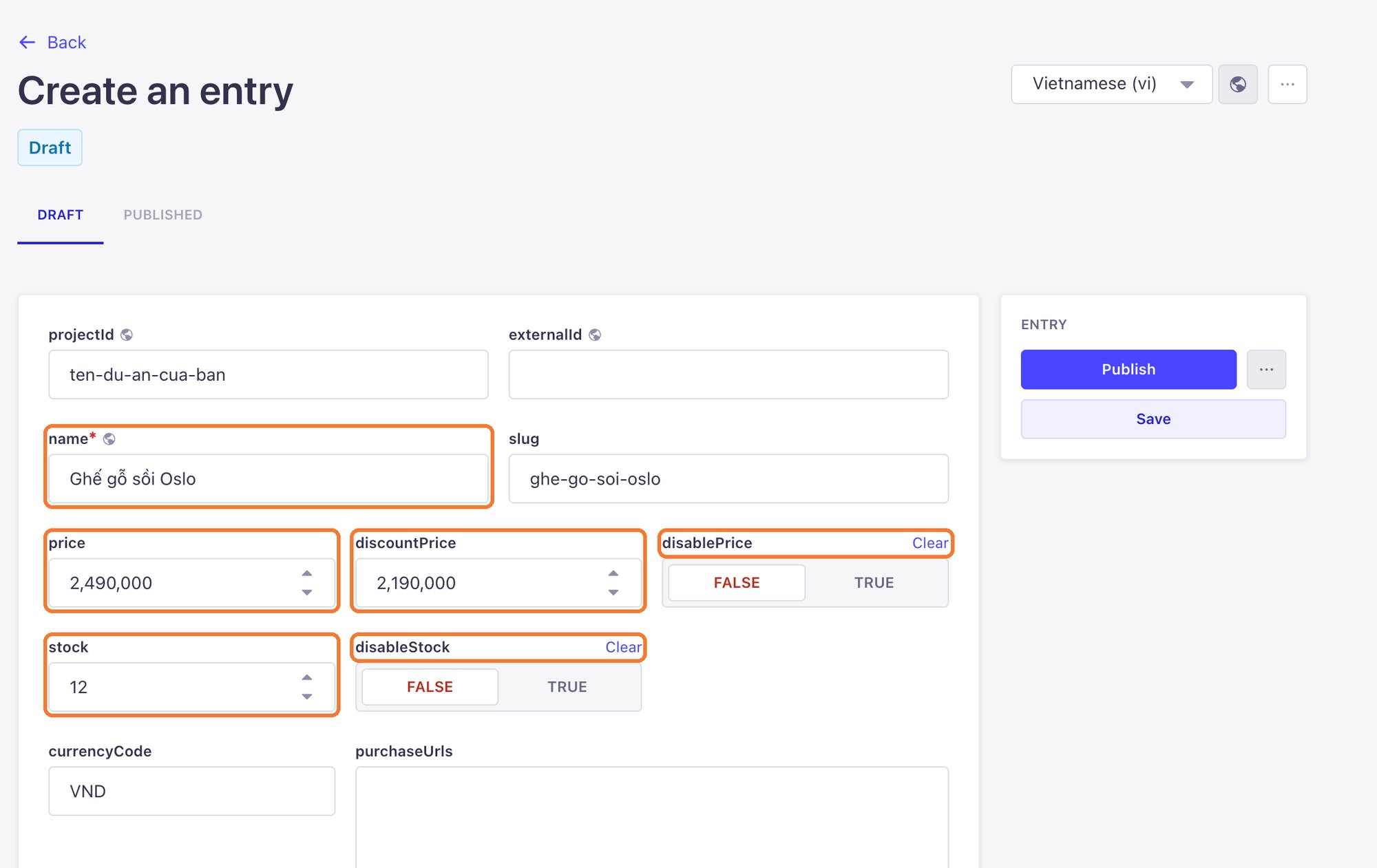
Preparing a product before it goes on sale? Click Save to keep a draft, and Publish when you are ready.
Still need help
Can't find the answer?
Message LaPage on Zalo with what you are trying to do and a screenshot if you have one. We will walk you through it step by step.